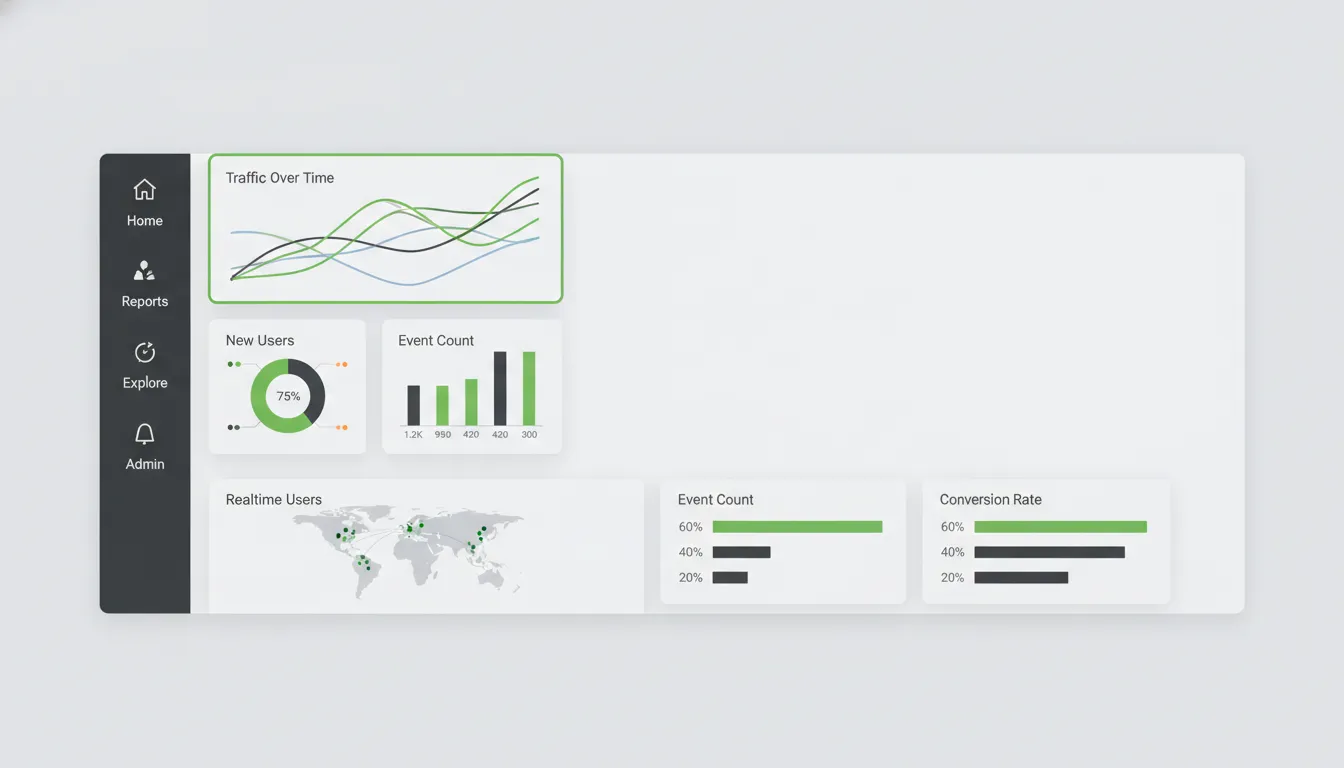
Google Analytics 4 is the standard for website and app analytics. Whether you are launching a new website or migrating from an older analytics setup, GA4 provides the data you need to understand your audience, measure marketing performance, and make informed business decisions. At Camfirst Solutions, we help businesses configure GA4 correctly so every marketing dollar is accounted for. This guide walks you through every step of setting up GA4, from creating your property to building custom audiences.
Why Google Analytics 4 Matters
GA4 is built around an event-based data model, which means it tracks user interactions more flexibly than the older session-based approach. It offers cross-platform tracking, improved privacy controls, and machine-learning-powered insights that help you anticipate customer behavior rather than simply react to it.
For any business investing in digital marketing, GA4 is not optional. It is the foundation that connects your advertising spend, content strategy, and user experience metrics into a single source of truth.
Step 1: Create a Google Analytics 4 Property
The first step is creating a GA4 property inside your Google Analytics account.
- Sign in to Google Analytics with your Google account.
- In the bottom-left corner, click the Admin gear icon.
- In the Property column, click Create Property.
- Enter a property name that clearly identifies your website or business.
- Select your reporting time zone and currency. Choose the time zone that matches your primary audience location so your daily reports align with real user activity.
- Click Next, then provide your business details including industry category and business size.
- Select your business objectives. GA4 tailors its default reports based on what you choose here, but you can always customize reports later.
- Click Create to finalize your new GA4 property.
Your property is now live, but it is not collecting data yet. For that, you need a data stream.
Step 2: Set Up a Data Stream
A data stream tells GA4 where to collect data from. For most businesses, this will be a web data stream tied to your website.
- After creating your property, GA4 will prompt you to set up a data stream. Select Web.
- Enter your website URL and provide a stream name (for example, “Main Website”).
- Make sure Enhanced Measurement is toggled on. This automatically tracks page views, scrolls, outbound clicks, site search, video engagement, and file downloads without any extra code.
- Click Create Stream.
GA4 will generate a Measurement ID (formatted as G-XXXXXXXXXX). You will need this ID to install the tracking code on your site.
Configuring Enhanced Measurement
After creating your stream, click the gear icon next to Enhanced Measurement to review which events are being tracked automatically. You can toggle individual events on or off depending on your needs. For example, if your site does not have a search function, you can disable site search tracking to keep your data clean.
Step 3: Install the GA4 Tracking Code
There are several ways to add the GA4 tracking code to your website. The method you choose depends on your site platform and technical comfort level.
Option A: Install via Google Tag (gtag.js)
This is the most direct method. Copy the Global Site Tag snippet from your data stream details page and paste it into the <head> section of every page on your website. The snippet looks like this:
<!-- Google tag (gtag.js) -->
<script async src="https://www.googletagmanager.com/gtag/js?id=G-XXXXXXXXXX"></script>
<script>
  window.dataLayer = window.dataLayer || [];
  function gtag(){dataLayer.push(arguments);}
  gtag('js', new Date());
  gtag('config', 'G-XXXXXXXXXX');
</script>
Replace G-XXXXXXXXXX with your actual Measurement ID.
Option B: Install via Google Tag Manager
If you already use Google Tag Manager (GTM), this is the recommended approach because it gives you more control without touching your site code repeatedly.
- Log in to Google Tag Manager.
- Create a new tag and select Google Analytics: GA4 Configuration as the tag type.
- Enter your Measurement ID.
- Set the trigger to All Pages.
- Save and publish your container.
Option C: Use a CMS Plugin
If your website runs on WordPress, Shopify, or another CMS, there are dedicated plugins and integrations that let you enter your Measurement ID without editing code. For WordPress, plugins like Site Kit by Google handle the entire setup process.
If you need help with installation, our web development team can integrate GA4 into any website platform quickly and correctly.
Step 4: Verify Your Installation
Before moving on, confirm that GA4 is receiving data.
- Open your website in a browser.
- In GA4, navigate to Reports > Realtime.
- You should see at least one active user (yourself) within a few seconds.
If no data appears, check that your tracking code is placed correctly in the <head> section, that there are no typos in the Measurement ID, and that no ad blockers or browser extensions are preventing the script from loading.
You can also use the Google Tag Assistant Chrome extension to debug tag firing issues directly in your browser.
Step 5: Configure Key Events (Conversions)
GA4 replaced the concept of “goals” with key events (formerly called conversions). These are the actions that matter most to your business, such as form submissions, purchases, phone calls, or newsletter signups.
Marking Existing Events as Key Events
- Go to Admin > Data Display > Events.
- Find the event you want to mark (for example,
form_submitorpurchase). - Toggle the Mark as key event switch.
Creating Custom Events
If the event you want to track does not exist yet, you can create it.
- In Admin > Data Display > Events, click Create Event.
- Give your event a descriptive name (for example,
contact_form_submission). - Define the matching conditions. For instance, you might match on
event_name equals form_submitandpage_location contains /contact. - Save the event, then mark it as a key event once it appears in your events list.
Properly configured key events are essential for measuring your digital marketing ROI across your SEO and PPC campaigns. Without them, you are flying blind.
Step 6: Create Custom Events for Deeper Tracking
Beyond the built-in events and the key events you define through the GA4 interface, you may need to track interactions that require custom implementation. Examples include tracking specific button clicks, scroll depth thresholds, or interactions with embedded tools like calculators or chatbots.
Custom events are sent using the gtag.js function:
gtag('event', 'cta_button_click', {
  'button_text': 'Get a Free Quote',
  'page_section': 'hero'
});
With Google Tag Manager, you can create these events using built-in triggers (click triggers, scroll triggers, visibility triggers) without writing any JavaScript. This makes GTM particularly powerful for marketing teams that need to iterate quickly.
Best Practices for Custom Events
- Use clear, descriptive event names with snake_case formatting.
- Attach relevant parameters that provide context (page location, element name, category).
- Avoid creating too many events. Focus on the interactions that directly relate to business outcomes.
- Document your event naming conventions so your team stays consistent over time.
Step 7: Understand GA4 Reports
GA4 organizes its reports differently from older versions of Google Analytics. Here is a quick overview of the main report sections.
Realtime
Shows what is happening on your site right now. Useful for verifying tracking, monitoring campaign launches, or checking traffic during live events.
Acquisition
Tells you how users find your website. The Traffic Acquisition report breaks down sessions by channel (organic search, paid search, social, direct, referral), while the User Acquisition report shows how new users first discovered you.
Engagement
Covers what users do on your site. Key metrics include engagement rate, average engagement time, and events per session. The Pages and Screens report shows which pages get the most views and engagement.
Monetization
Tracks revenue from ecommerce transactions, in-app purchases, and ad revenue. If you run an online store, this section becomes your most important dashboard.
Retention
Shows how well you bring users back to your site. It includes new vs. returning user comparisons and cohort analysis to help you understand long-term engagement patterns.
Explore
The Explorations section lets you build custom reports using a drag-and-drop interface. You can create funnel analyses, path explorations, and segment overlap reports that go far beyond what the standard reports offer.
Step 8: Link Google Ads to GA4
If you run paid campaigns through Google Ads, linking your accounts is one of the most valuable things you can do in GA4.
- In GA4, go to Admin > Product Links > Google Ads Links.
- Click Link and select your Google Ads account.
- Enable personalized advertising if appropriate for your business.
- Click Submit.
Once linked, you can import GA4 key events into Google Ads as conversion actions, which allows Google’s bidding algorithms to optimize for the outcomes that actually matter to your business. You can also see GA4 engagement metrics (like engagement rate and average engagement time) directly in your Google Ads reports.
This integration is critical for anyone running Google Ads campaigns. For a detailed walkthrough, see our guide on how to track Google Ads conversions. Without it, you are optimizing campaigns based on incomplete data.
Step 9: Set Up Audiences
Audiences in GA4 let you group users based on shared characteristics or behaviors. These audiences can be used for analysis within GA4 or exported to Google Ads for remarketing.
Creating an Audience
- Go to Admin > Data Display > Audiences.
- Click New Audience.
- You can start from a template (such as “Purchasers” or “Recently Active Users”) or build a custom audience from scratch.
- Define your conditions. For example, you might create an audience of users who visited your pricing page but did not complete a purchase within the last 30 days.
- Name your audience clearly and click Save.
Audience Ideas for Most Businesses
- High-intent visitors: Users who viewed a service or product page more than twice in a single session.
- Cart abandoners: Users who added items to their cart but did not purchase.
- Blog readers: Users who spent more than two minutes reading blog content, useful for nurturing campaigns.
- Returning visitors: Users who visited at least three times in the past 30 days.
These audiences become especially powerful when exported to Google Ads, where you can serve targeted ads to people who have already shown interest in your business.
Common GA4 Setup Mistakes to Avoid
Even experienced marketers make mistakes during GA4 setup. Here are the most common pitfalls.
- Not filtering internal traffic. Go to Admin > Data Streams > your stream > Configure Tag Settings > Define Internal Traffic. Add your office IP addresses so your own visits do not skew reports.
- Ignoring data retention settings. By default, GA4 retains user-level data for only two months. Go to Admin > Data Settings > Data Retention and extend it to 14 months if you plan to use Explorations for historical analysis.
- Skipping cross-domain tracking. If your business operates across multiple domains (for example, a main site and a separate checkout domain), configure cross-domain tracking under your data stream settings so GA4 treats visits across domains as a single session.
- Not enabling Google Signals. Go to Admin > Data Settings > Data Collection and enable Google Signals. This improves demographic reporting and cross-device tracking.
What to Do After Setup
Setting up GA4 is just the beginning. To get real value from your analytics, you need to review your data regularly, build custom reports around your key business questions, and use your findings to refine your marketing strategy.
If your website is not yet optimized for the traffic GA4 will help you understand, consider investing in professional SEO services to increase your organic visibility, or explore a comprehensive digital marketing strategy that ties all your channels together. You may also want to improve your website speed score to ensure the best possible user experience once traffic starts flowing.
Get Expert Google Analytics 4 Setup and Support
Setting up GA4 correctly is the foundation of every successful digital marketing strategy. At Camfirst Solutions, we help businesses configure GA4 from day one so they can make confident, data-driven decisions. Whether you need a fresh installation, advanced event tracking, or integration with your Google Ads campaigns, our analytics team handles it all. Contact us today to get started with a free analytics consultation.
Frequently Asked Questions
How long does it take to set up Google Analytics 4?
A basic GA4 setup takes about 10-15 minutes. This includes creating a property, adding the tracking code to your website, and verifying data collection. Advanced configurations like custom events, conversions, and audience segments may take an additional 30-60 minutes.
Is Google Analytics 4 free?
Yes, GA4 is completely free for most businesses. Google also offers Analytics 360 for enterprises that need higher data limits, service-level agreements, and BigQuery integration, but the free version handles up to 10 million events per month.
What is the difference between GA4 and Universal Analytics?
GA4 uses an event-based data model instead of the session-based model in Universal Analytics. This means GA4 tracks individual user interactions more flexibly, supports cross-platform tracking (web and app), includes machine learning insights, and is designed with privacy regulations in mind. Universal Analytics was deprecated in July 2023.
Can I use GA4 with WordPress, Shopify, or Astro?
Yes. For WordPress, use the Google Site Kit plugin or add the gtag.js code to your theme header. For Shopify, paste the GA4 tag in Online Store > Preferences. For static site generators like Astro, add the tracking script directly to your layout head component. Our web development team can help with any platform.
How do I know if GA4 is tracking correctly?
Open the Realtime report in GA4 and navigate your website in a separate tab. You should see your visit appear within seconds. You can also use the DebugView in GA4 (Admin > DebugView) or install the Google Tag Assistant Chrome extension for detailed tag verification.